Pocket money that teaches
Every week the money lands in three jars: Spend, Save and Give. Children see it grow, save toward something they want, and learn what a month of patience can do.
Set up your familyFree. No sign-up. Works on any phone.
How it works

1. Set it up once
Add each child, the pocket money and the pay day. Share it between the jars with plus and minus buttons, and add chores if you like.

2. Pay day looks after itself
Open the app and any pay days you missed are added, once each. Children tap their picture to see their jars.

3. Save for something real
Pick a goal with a picture. The app says how many weeks are left, worked out from what goes into Save.
Every screen
Here is the whole app, one screen at a time.
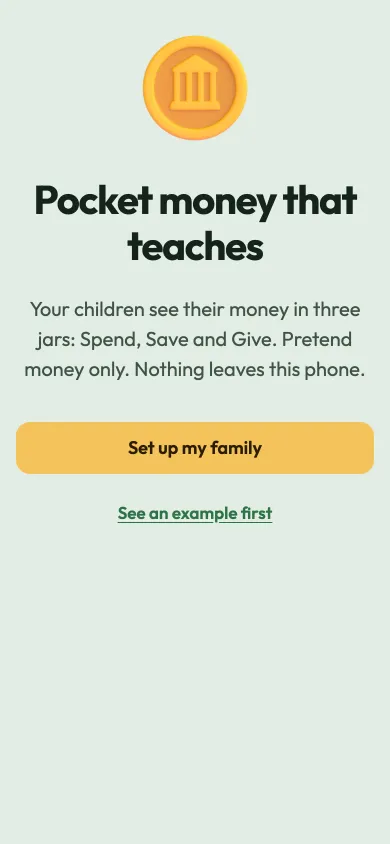
Welcome
The first screen, with a way to set up your family or look at an example.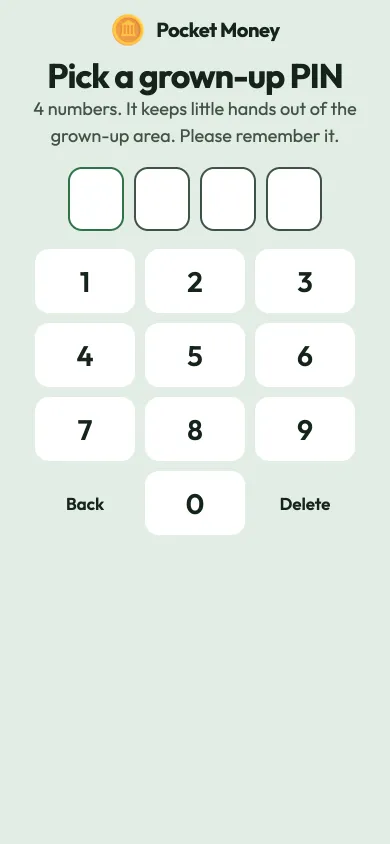
Pick a grown-up PIN
Four numbers keep little hands out of the grown-up area.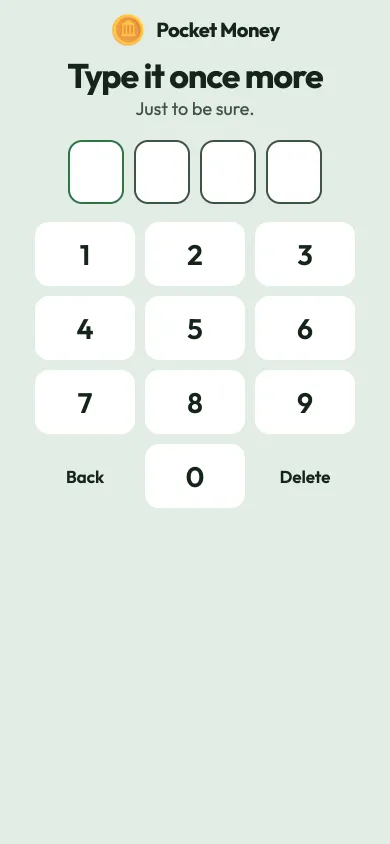
Type it once more
A second go makes sure the PIN is right.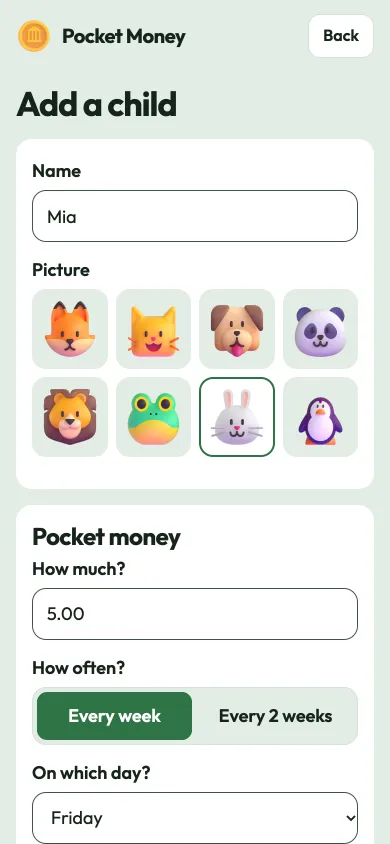
Add a child
A name, a picture, the pocket money and the pay day.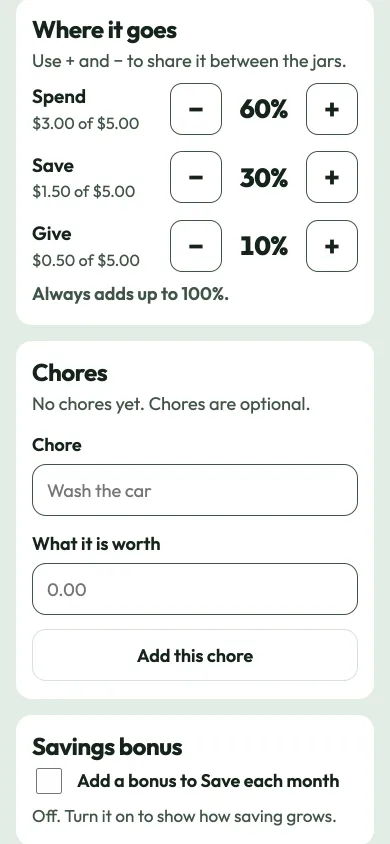
Share it between jars
Plus and minus buttons split the money into Spend, Save and Give.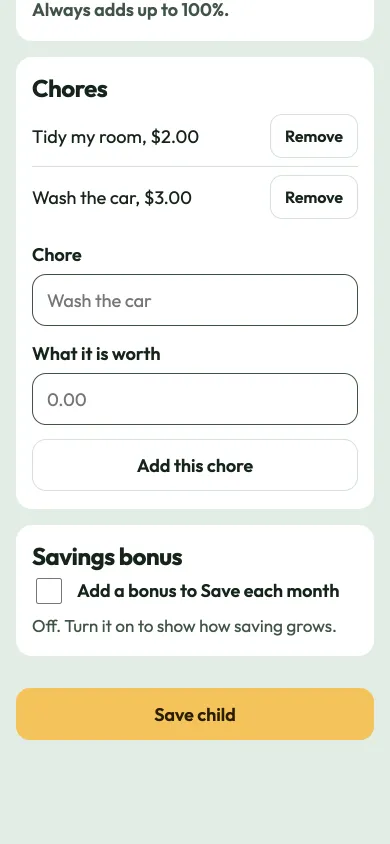
Add chores
Optional jobs with a price, checked by a grown-up.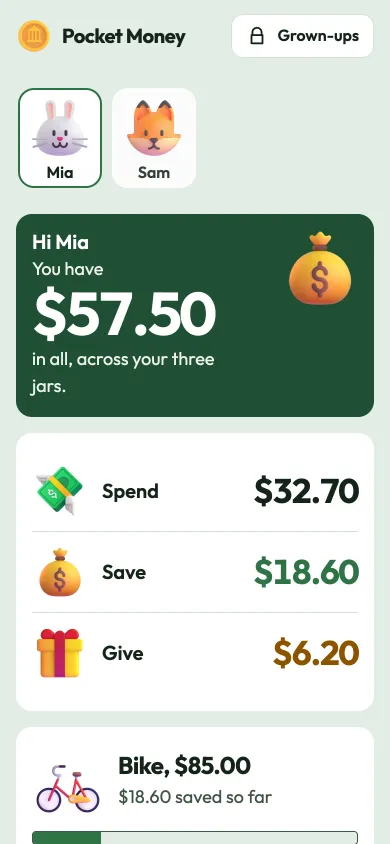
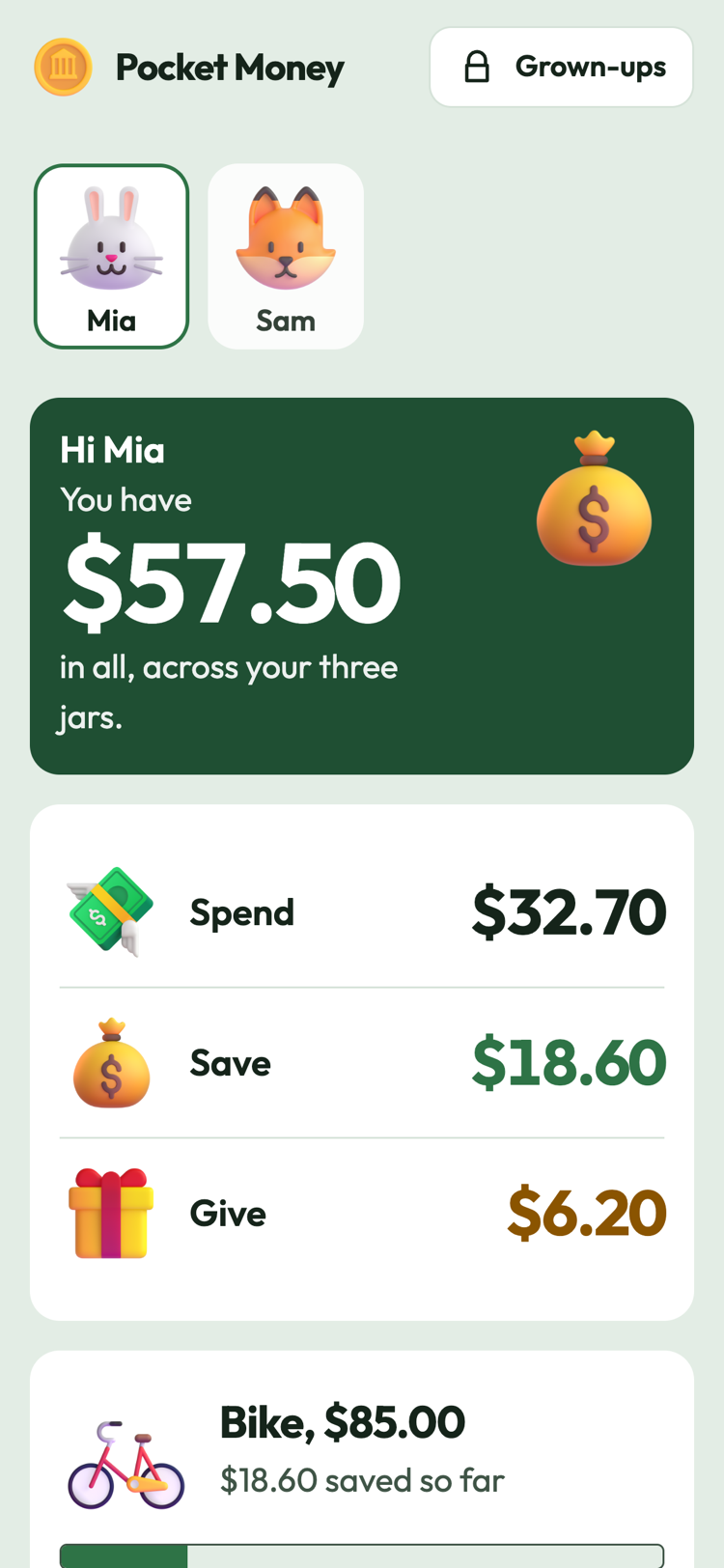
A child's screen
The total and the three jars, in big numbers.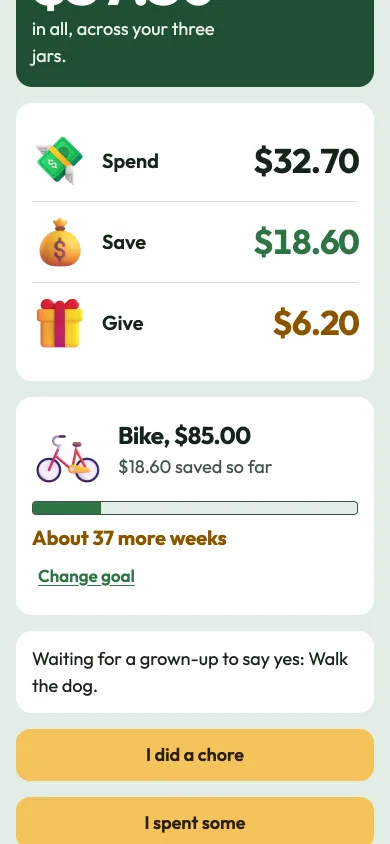
A savings goal
A picture, a bar and how many weeks are left.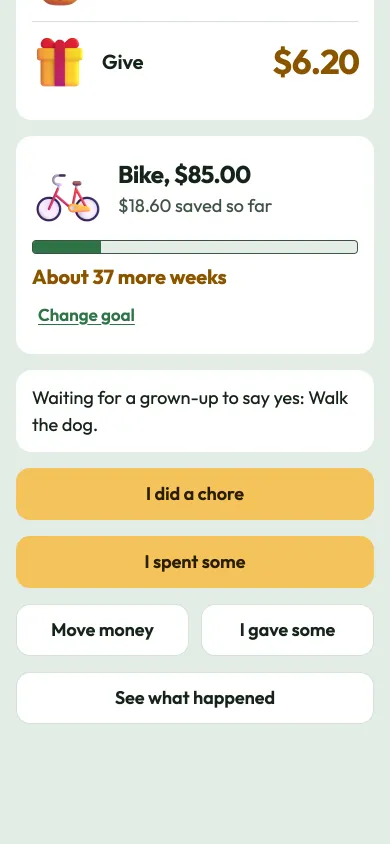
What a child can do
Do a chore, spend, move money or give some away.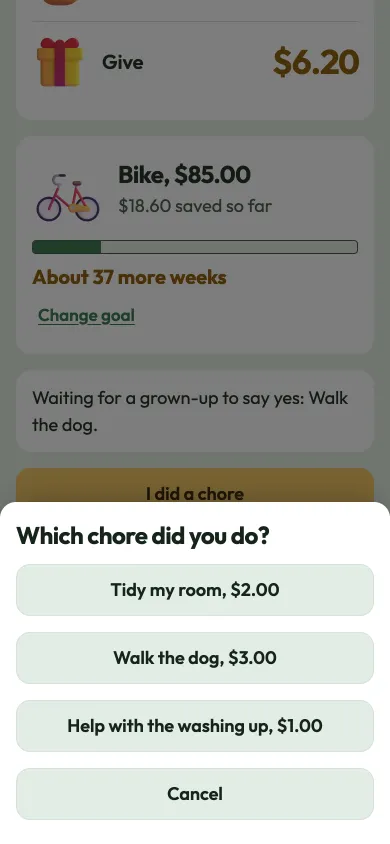
Which chore?
Tap the chore you did and a grown-up checks it.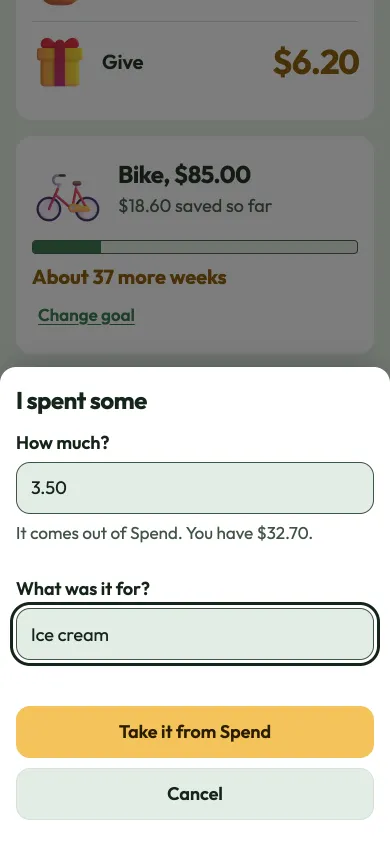
Spend some
Say how much and what it was for.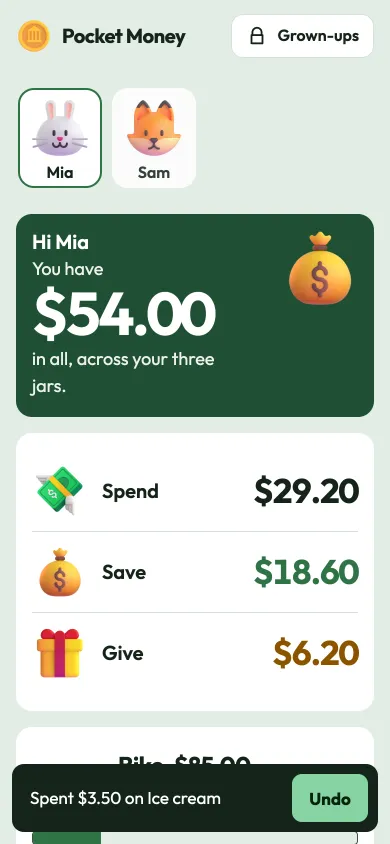
Undo in one tap
Every change can be taken back for a few seconds.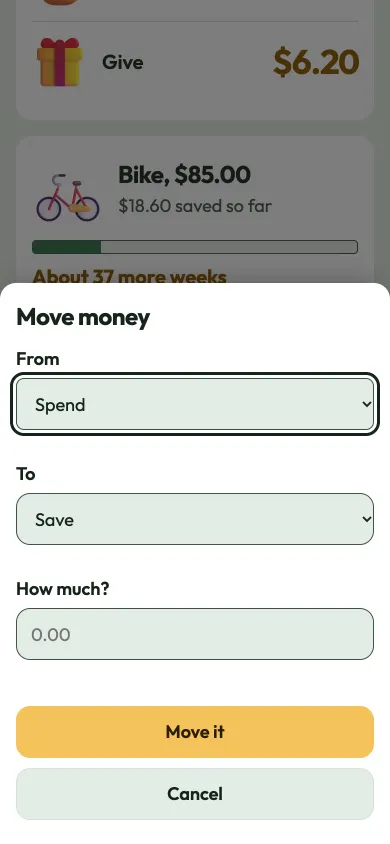
Move money
Shift money from one jar to another.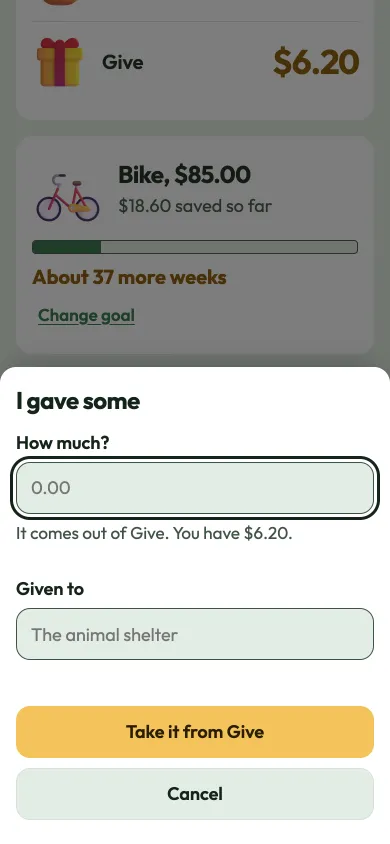
Give some away
Take money out of Give and say who it went to.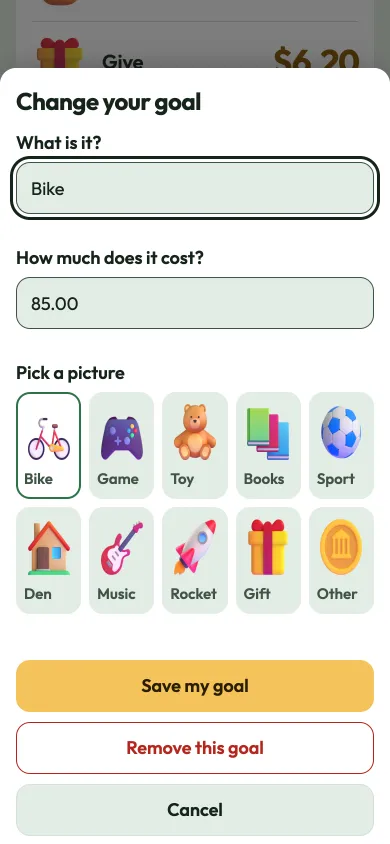
Pick a goal
Choose a picture, a name and a price.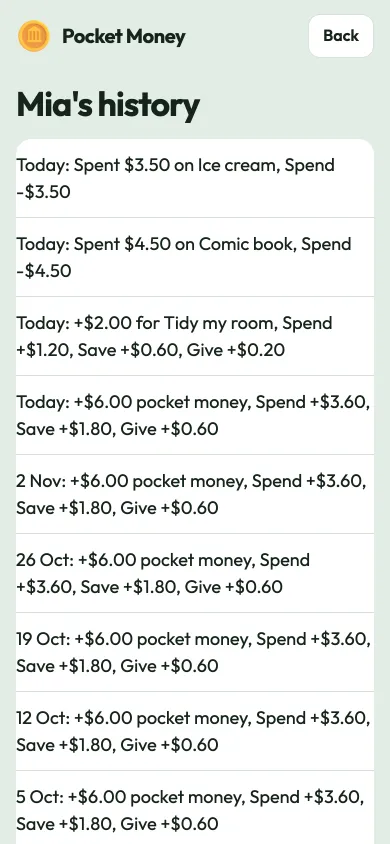
What happened
A plain list of every pay day, chore and spend.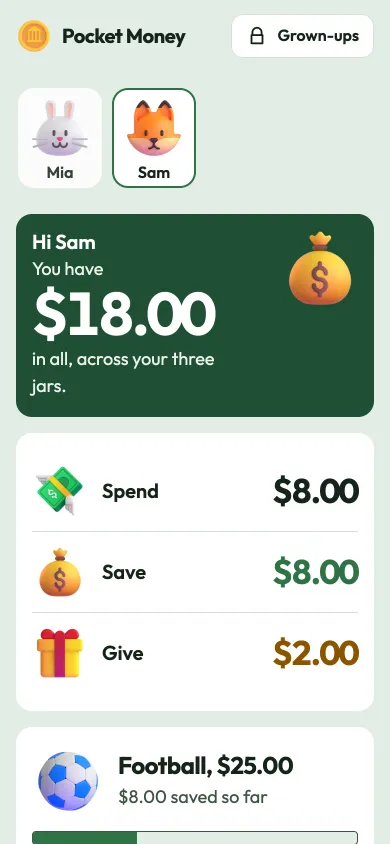
Another child
Each child has their own jars and goal.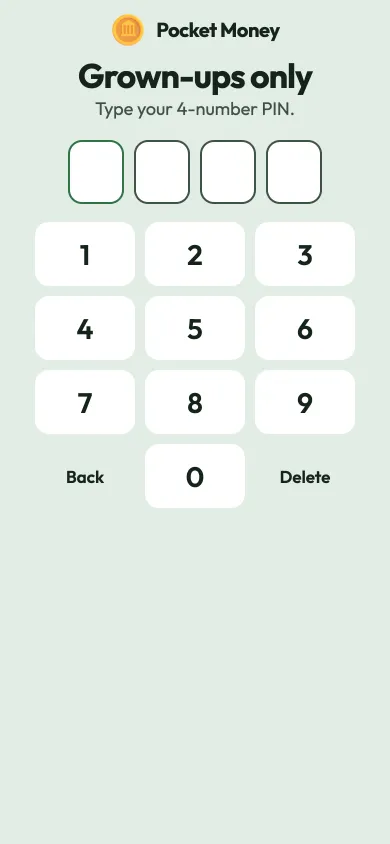
Grown-ups only
The PIN opens the grown-up area.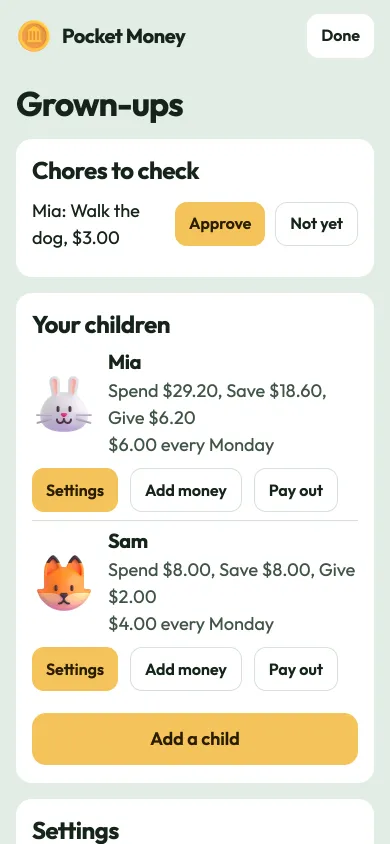
Grown-ups
Approve chores and see each child at a glance.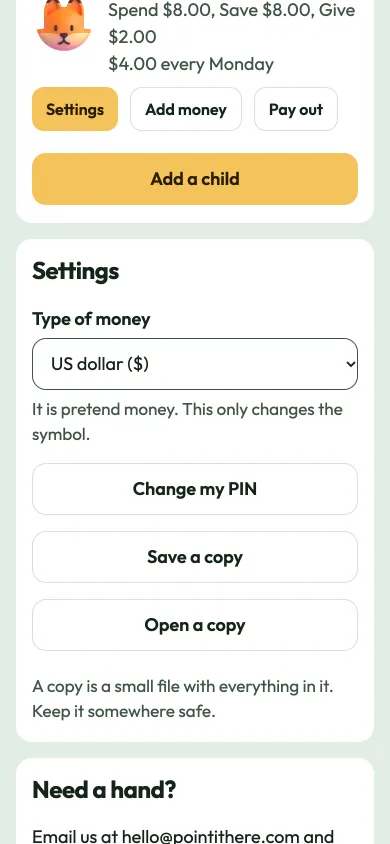
Each child's tools
Settings, add money and pay out for each child.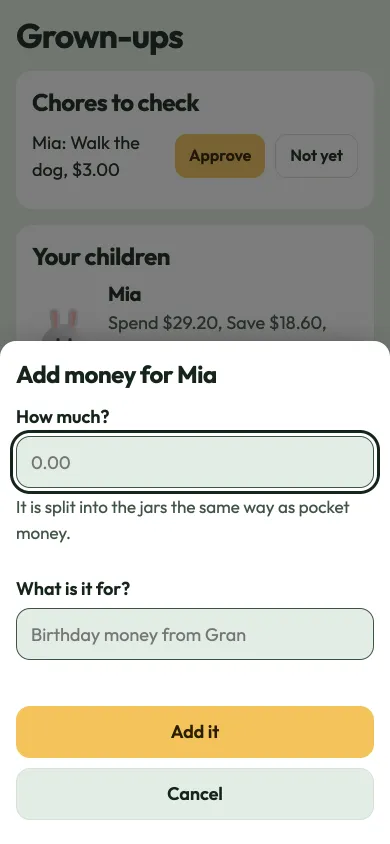
Add money
Gifts and extras, split the same way as pocket money.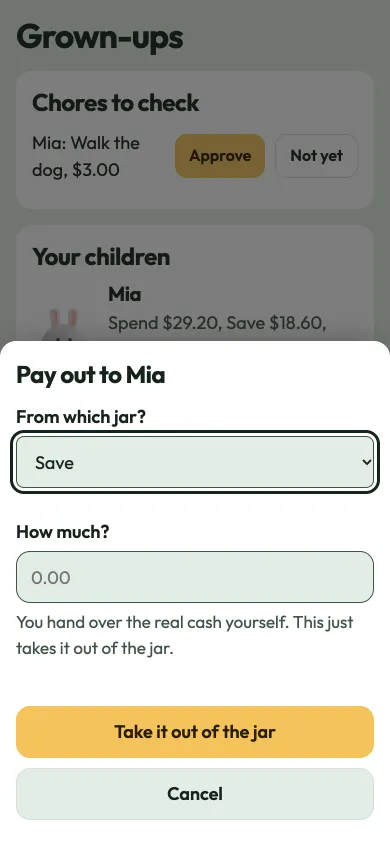
Pay out
Note down cash you hand over, taken out of a jar.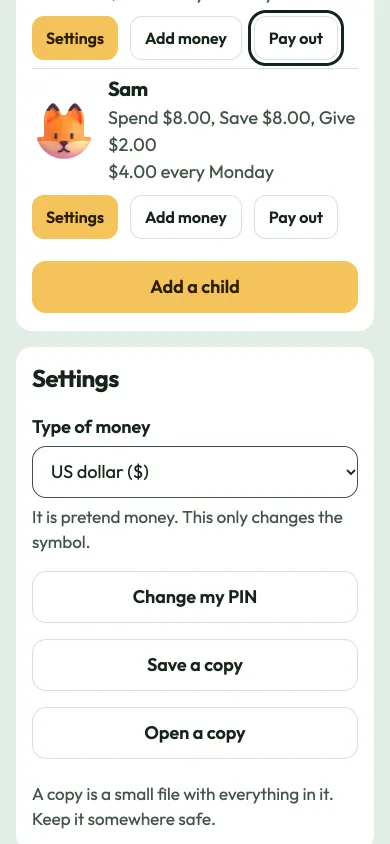
Settings
Pick the type of money, change the PIN or save a copy.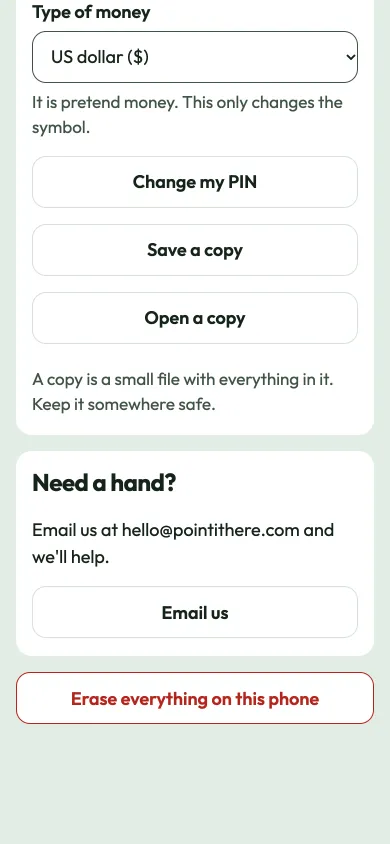
Help and copies
Save a copy, open a copy, or email for help.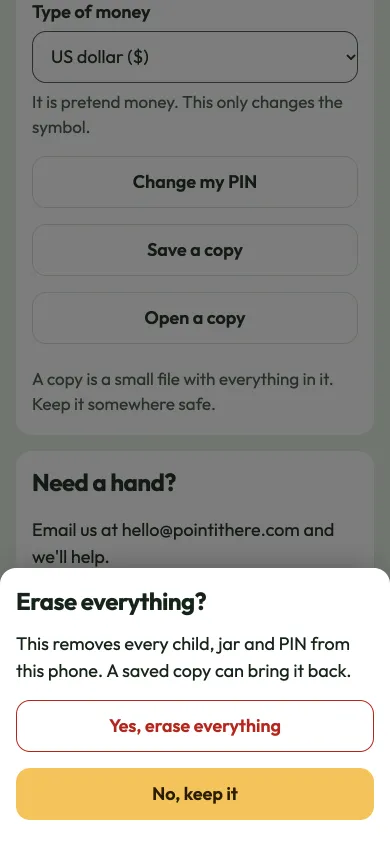
Erase, with a warning
It asks first and says what will go.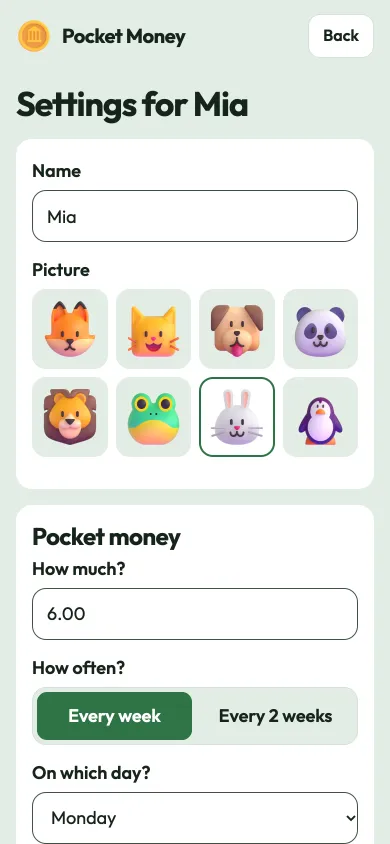
Change a child
Edit the name, picture, amount and day.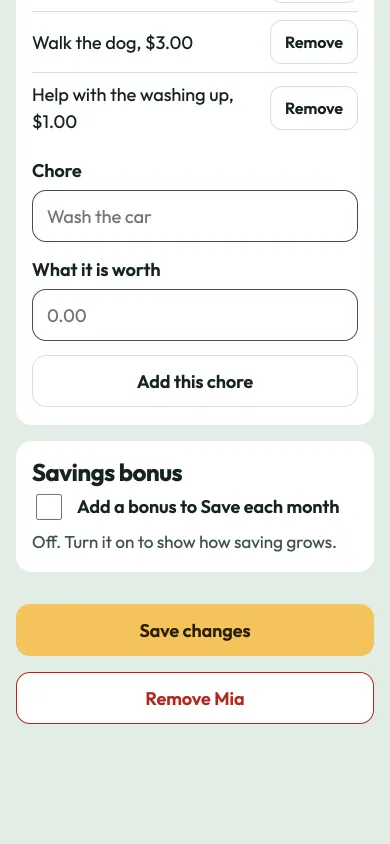
Savings bonus
An optional monthly bonus that shows how saving grows.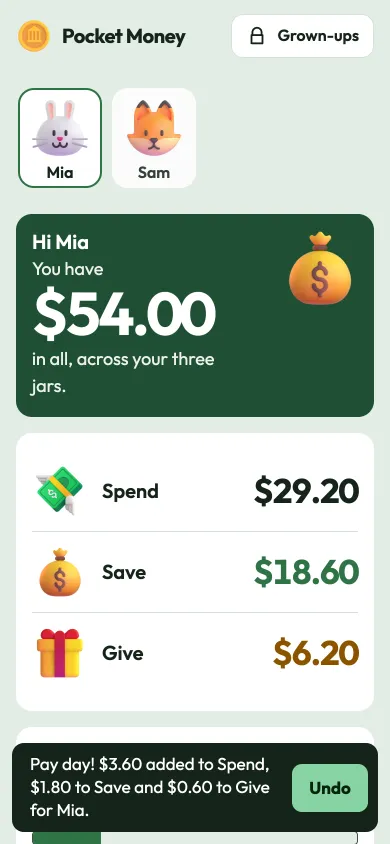
Missed pay days
Open the app and any pay day you missed is added, with an Undo.
Why we built it
We wanted a way to show our own children where their money goes, without handing them a card or an account. Three jars, a goal on the wall and a short list of what happened turned out to be enough to start good conversations. So we made it, and we keep it private: your family's numbers stay on your device.
Questions
Is this real money?
No. Pocket Money is a notebook. You still hand over the real coins or make the real transfer yourself. The app only keeps count so your child can see where it goes.
Does it connect to a bank or card?
No. There are no banks, no cards and no sign-up. Nobody can spend anything through it.
What does the PIN do?
It keeps little hands out of the grown-up area, so a child can't approve their own chores. It isn't a lock. Someone who knows how to look inside the browser can get around it, so treat it like a door latch, not a safe.
Where is our information kept?
Only on the phone or computer you use. There is no account, no server and nothing is sent anywhere. If you clear the browser's data, it goes too, so tap "Save a copy" now and then.
What happens if we miss a pay day?
When you open the app, it adds every pay day that went by, once each, and shows you what it added. You can undo it.
What is the savings bonus?
An optional extra. You choose a percentage, and each month the grown-up adds that much to Save. It shows how money can grow when it is left alone. It is off until you turn it on.
Can we use it on more than one phone?
Each phone keeps its own notebook. Use "Save a copy" on one and "Open a copy" on the other to move it across.
Does it work without internet?
Yes. After the first visit it works offline.